
How to Whitelist an Email
Avoid missing important emails:
With the increasing amount of spam and junk emails, legitimate emails can sometimes get caught in the spam filter and go unnoticed. By whitelisting trusted senders, you can ensure that important emails from colleagues, clients, or family members are always delivered to your inbox. This can save you from missing important information or opportunities, and help you stay organized and on top of your emails.
What Does Whitelist Mean?
Whitelisting is a simple step. It simply means telling your mail service to always let certain emails in. It works by adding an address to a special list so that its emails arrive in your inbox and never get marked as spam.
If a sender is mistakenly blacklisted, their messages will lend up the junk folder. Since you don’t want that, the following email whitelisting instructions will help you avoid the trouble of having important messages identified as spam.
No matter where you have your Inbox, understanding what is whitelisting an email will make sure all the important emails go to your Inbox whether you are using Gmail, Outlook, Yahoo, or other email providers.
How to Whitelist an Email in Gmail
Whitelisting an email in Gmail allows you to ensure that emails from a specific sender always land in your inbox, rather than getting filtered into spam or promotions folders. To whitelist an email in Gmail, start by opening the email from the sender you want to whitelist. Next, click on the three dots in the top right corner of the email and select "Add [sender] to Contacts" from the drop-down menu. This will add the sender's email address to your contacts list, which will help Gmail recognize them as a trusted sender.
Another way to whitelist an email in Gmail is by creating a filter. To do this, click on the gear icon in the top right corner of your Gmail inbox and select "Settings" from the drop-down menu. Then, click on the "Filters and Blocked Addresses" tab and select "Create a new filter." In the "From" field, enter the email address of the sender you want to whitelist and click "Create filter." From there, you can choose to mark the email as important, star it, or even automatically archive it to keep your inbox clutter-free. By whitelisting an email in Gmail, you can ensure that important emails always make it to your inbox and avoid missing any important information.
Here's how to do it
Log in to your Gmail account.
Click the Settings gear icon in the top-right corner, then select See all settings.
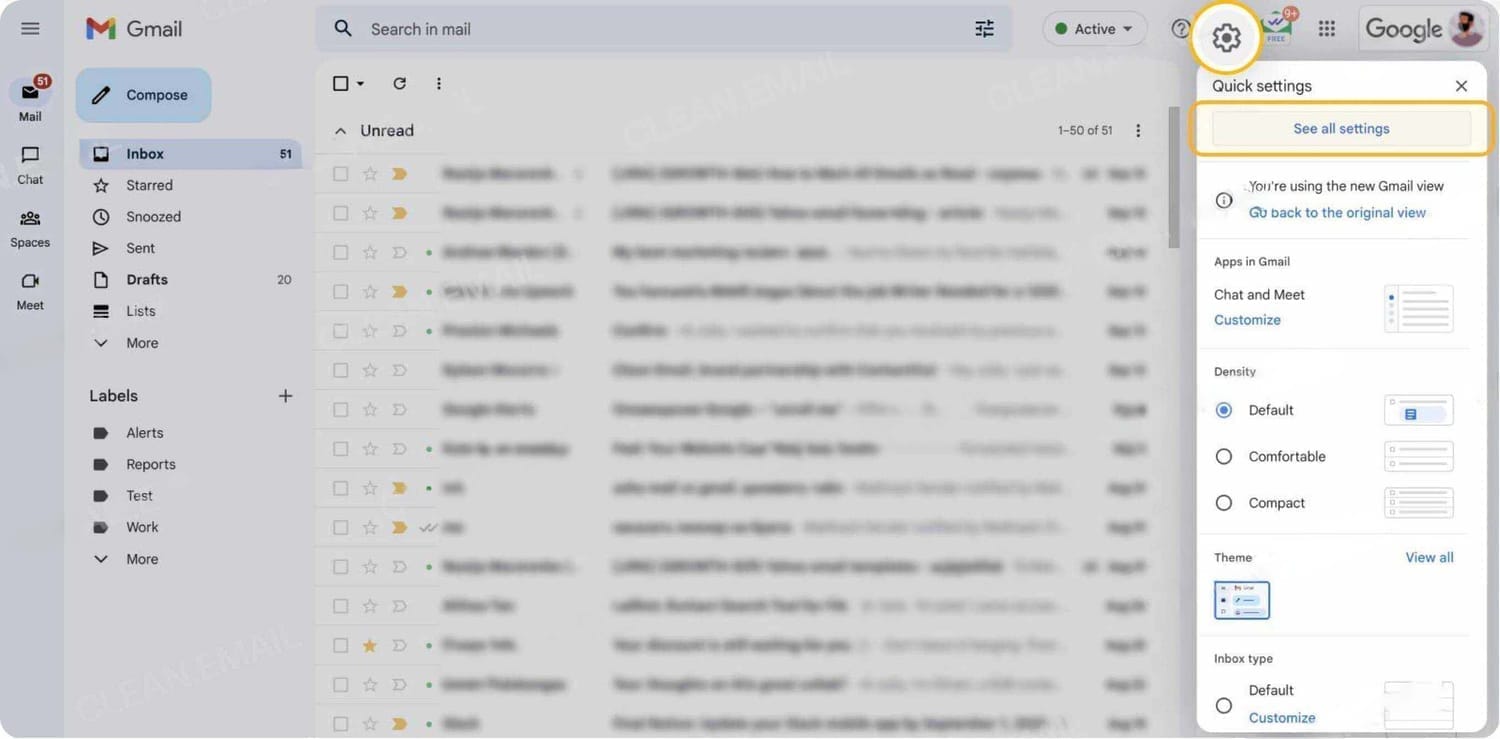
Gmail Quick Settings
Navigate to the tab labeled Filters and Blocked Addresses to access information about your existing filters, and select Create a new filter.
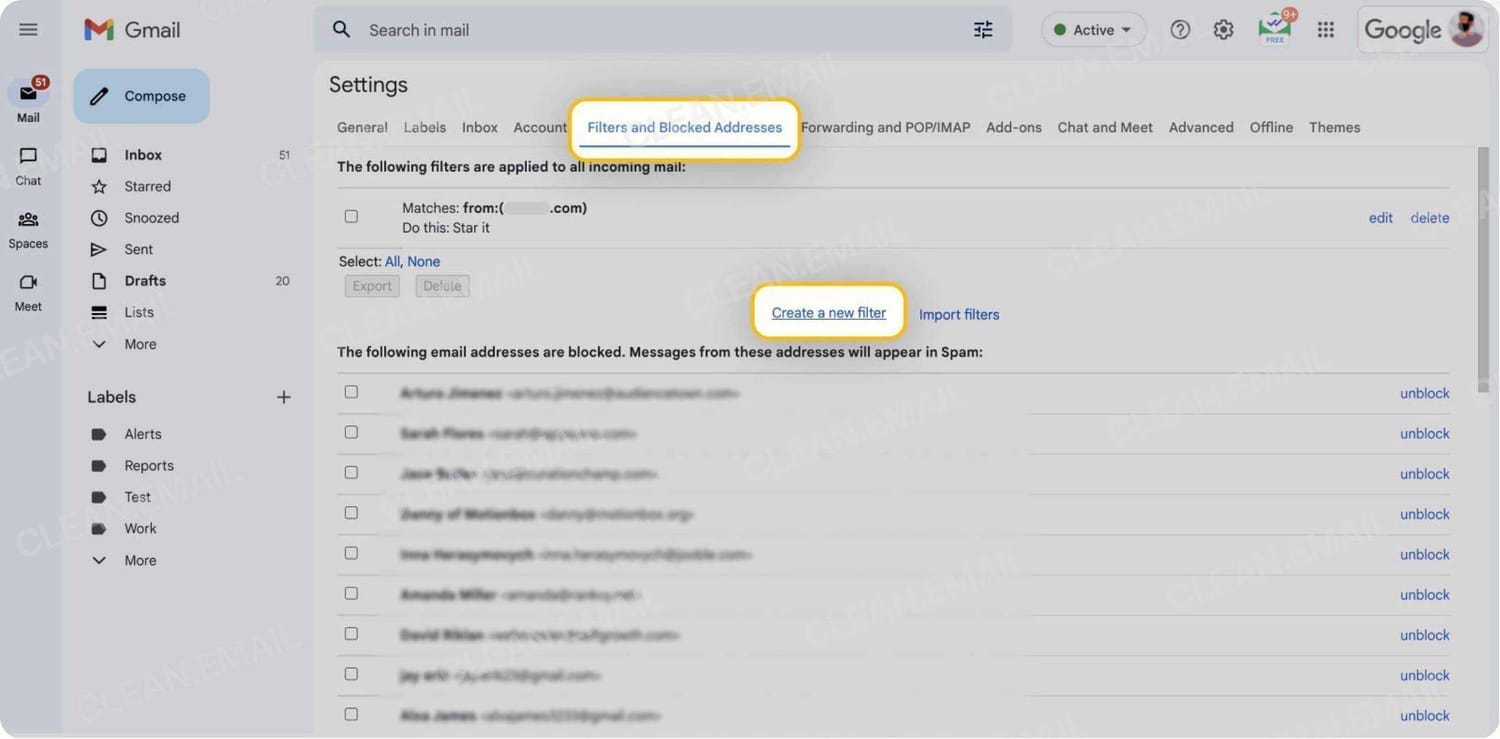
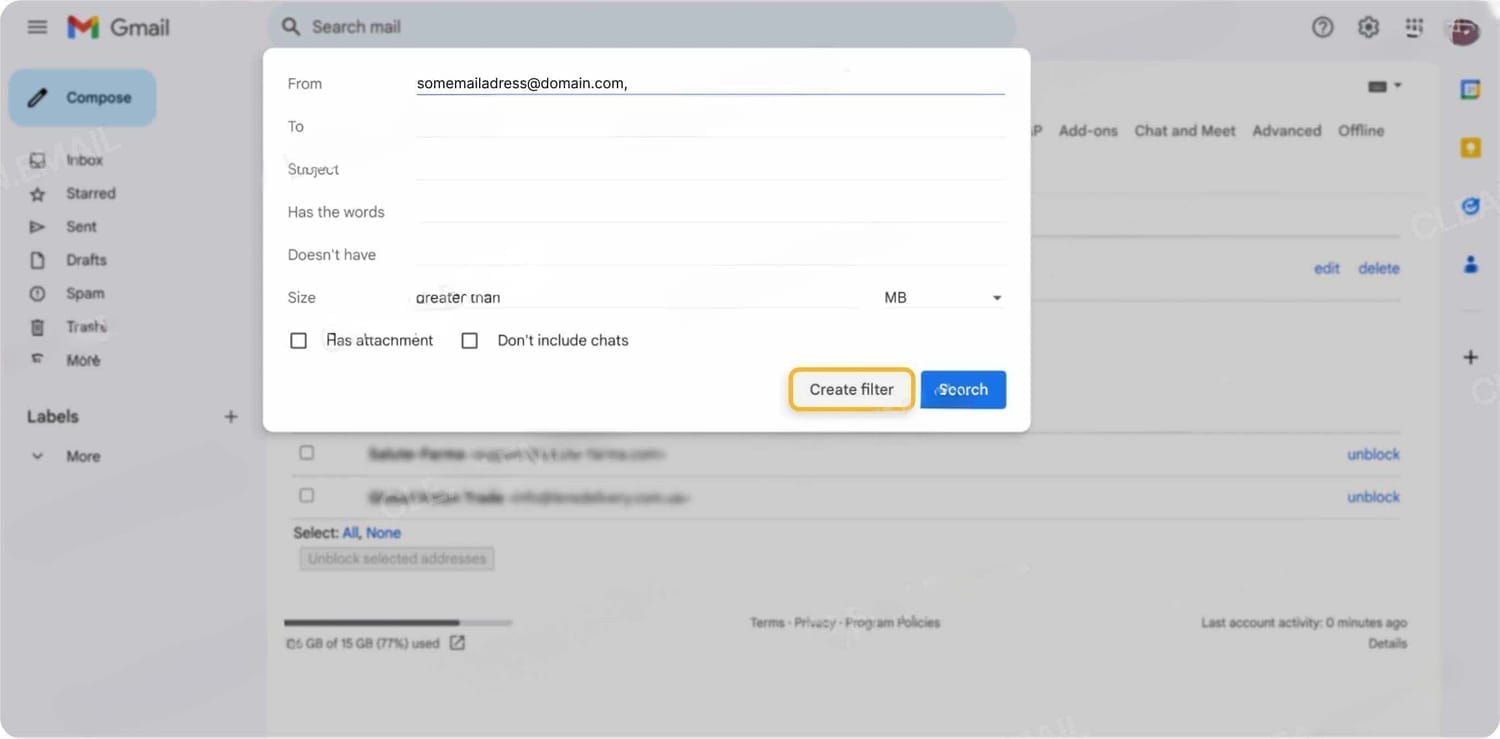
To whitelist a single sender, type the entire address. On the other hand, if you’re trying to whitelist every sender from a certain domain, type the domain alone, such as “@yahoo.com”. This will set Gmail spam settings to approve every message from a Yahoo sender.
Enter the emails or domains you want to add to the Gmail whitelist into the From section.
Click Create filter to confirm.
Put a mark next to Never send it to Spam to add this address to the Gmail safe sender list.
Click Create filter again to save settings.
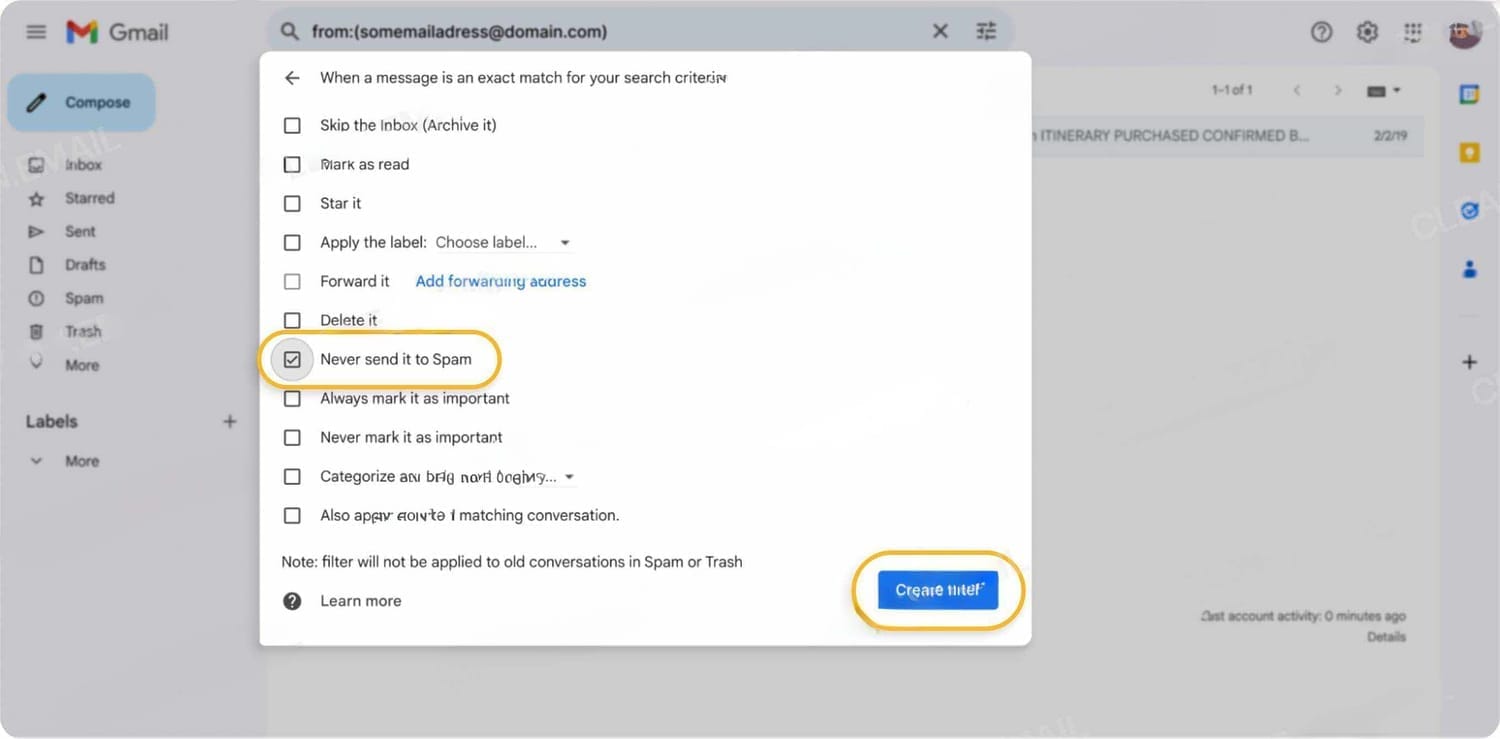
Using Gmail's filter settings, you can also star these emails, apply a chosen label, mark them as important, or perform other actions.
Whitelisting in Gmail mobile app
The Gmail mobile app does not have an option to create advanced filters, but it offers the possibility to whitelist senders in your spam folder:
Open the Gmail app.
Navigate to Spam or Junk folder.
Click on the message you wish to view.
Select the option Report not spam. You will now receive messages from this sender as normal.
How to Whitelist an Email in Outlook
Whitelisting an email in Outlook desktop is a simple process that allows you to mark certain emails as safe and ensure they are not sent to your junk or spam folder.
How to Whitelist in Outlook desktop
Open your Outlook inbox and click on the "Junk" folder. This is where all your spam and junk emails are stored.
Find the email that you want to whitelist and right-click on it. A drop-down menu will appear, and you can select "Junk" from the options.
Click on "Never Block Sender" to whitelist the email.
How to Whitelist in Outlook.com
To whitelist email address in Outlook.com means adding it to a group called Safe senders. A whitelisted address will bypass Outlook spam filters and be delivered to your inbox.
To add an address or domain to the Safe senders list:
Sign in to your Outlook inbox on the web.
Select the gear icon in the top right corner to access Settings.
On the left sidebar, click on Mail, then navigate to Junk email.
Click on +Add under Safe senders and domains to add a contact to the allowed list.
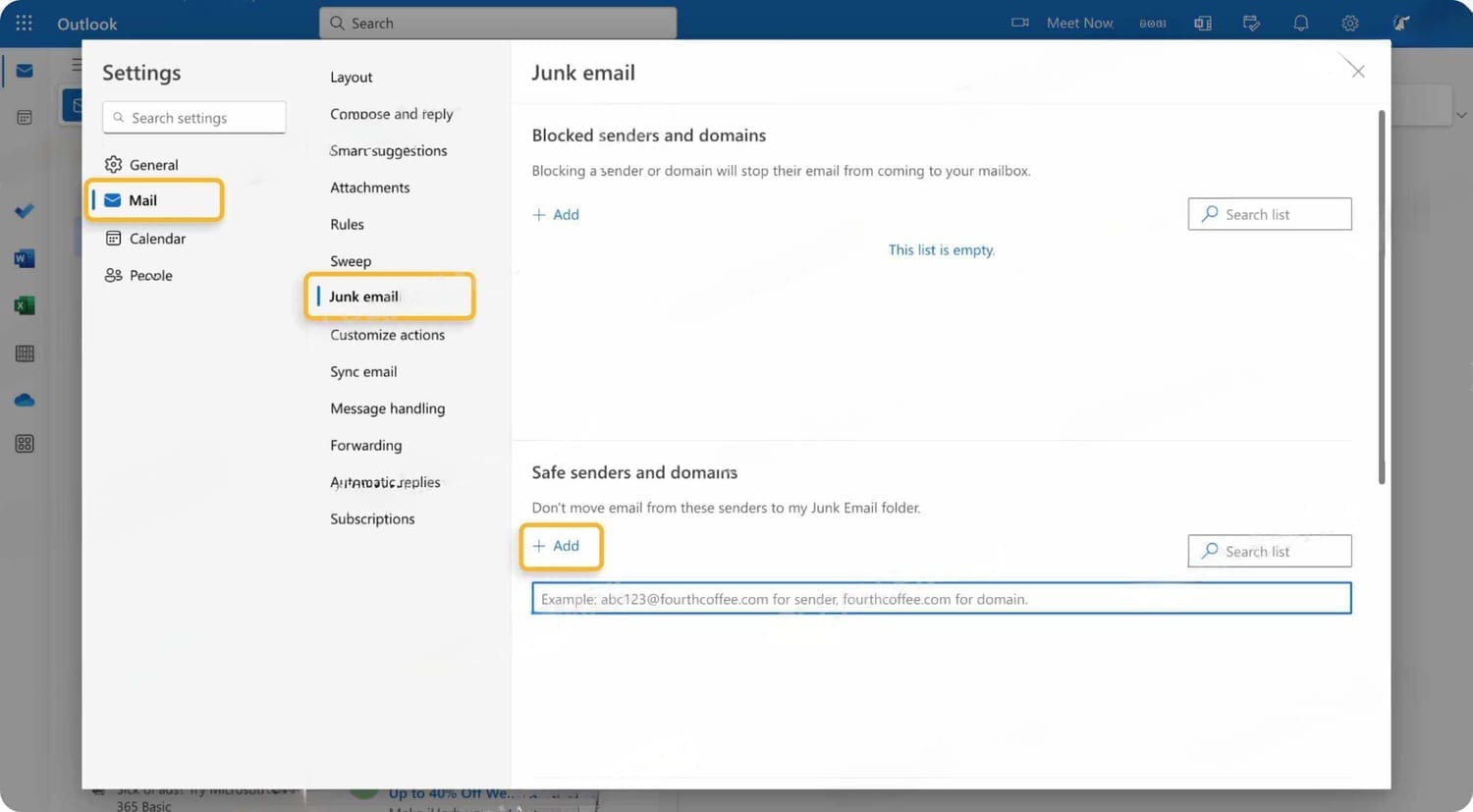
Enter the domain name or email address you wish to add to Safe senders. Make sure to include the @ character for domain names.
Alternatively, you can simply add an individual address that has sent you a message to your Outlook Contacts. Though they lead to the same result, this method is quicker and more efficient than manually entering information.
How to whitelist a mail in Yahoo?
To whitelist in Yahoo Mail, create mail filters for trusted addresses or mark messages as 'Not Spam'. This helps ensure important emails aren't missed.
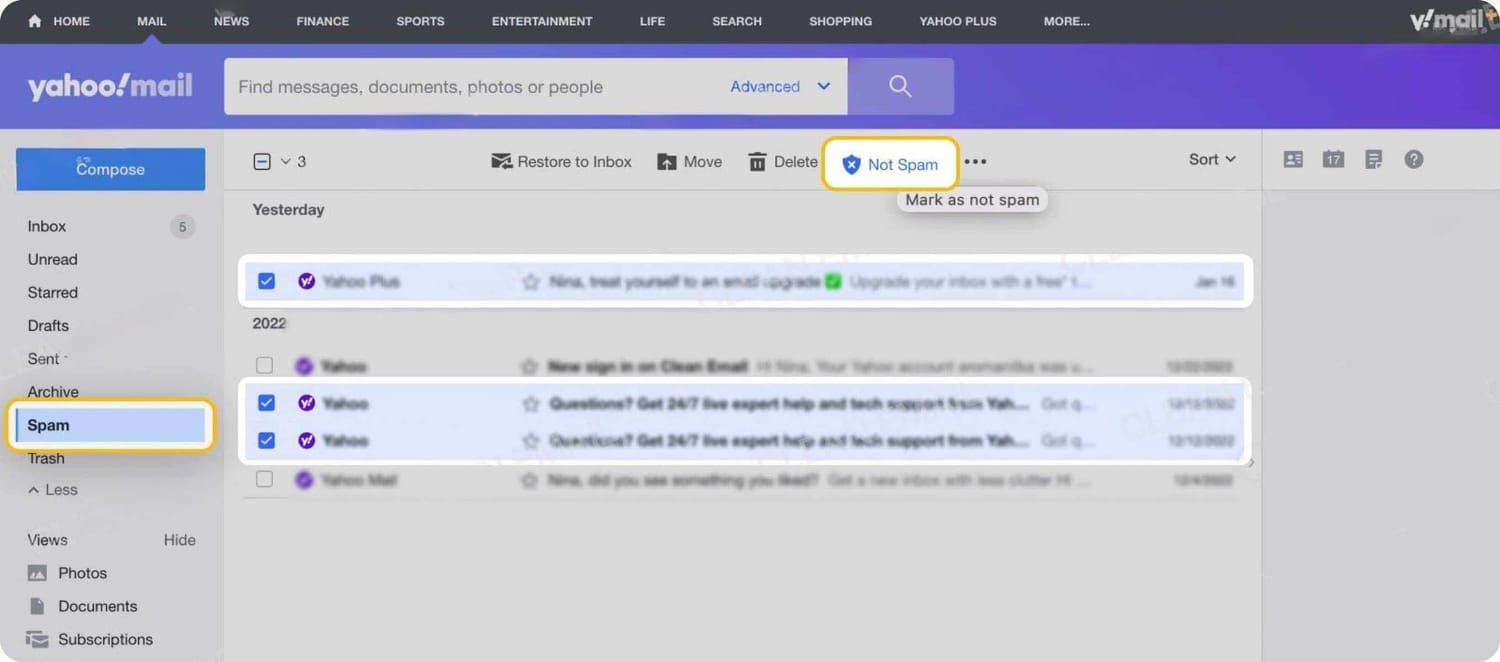
Once you have marked the email as not spam in Yahoo, the Yahoo spam filter will automatically allow future messages from the same address into your inbox.
How to Whitelist an Email Address in AOL
To whitelist email in AOL, you can follow these simple steps. First, log in to your AOL account and go to the "Settings" menu. Then, click on "Spam Settings" and select "Allow mail from addresses listed below" option. Here, you can add the email addresses or domains that you want to whitelist. Click on "Save" to apply the changes.
AOL also assumes that email addresses that you add to your Contacts list are trustworthy. This is also a simple way to whitelist an email address:
Log in to your AOL account.
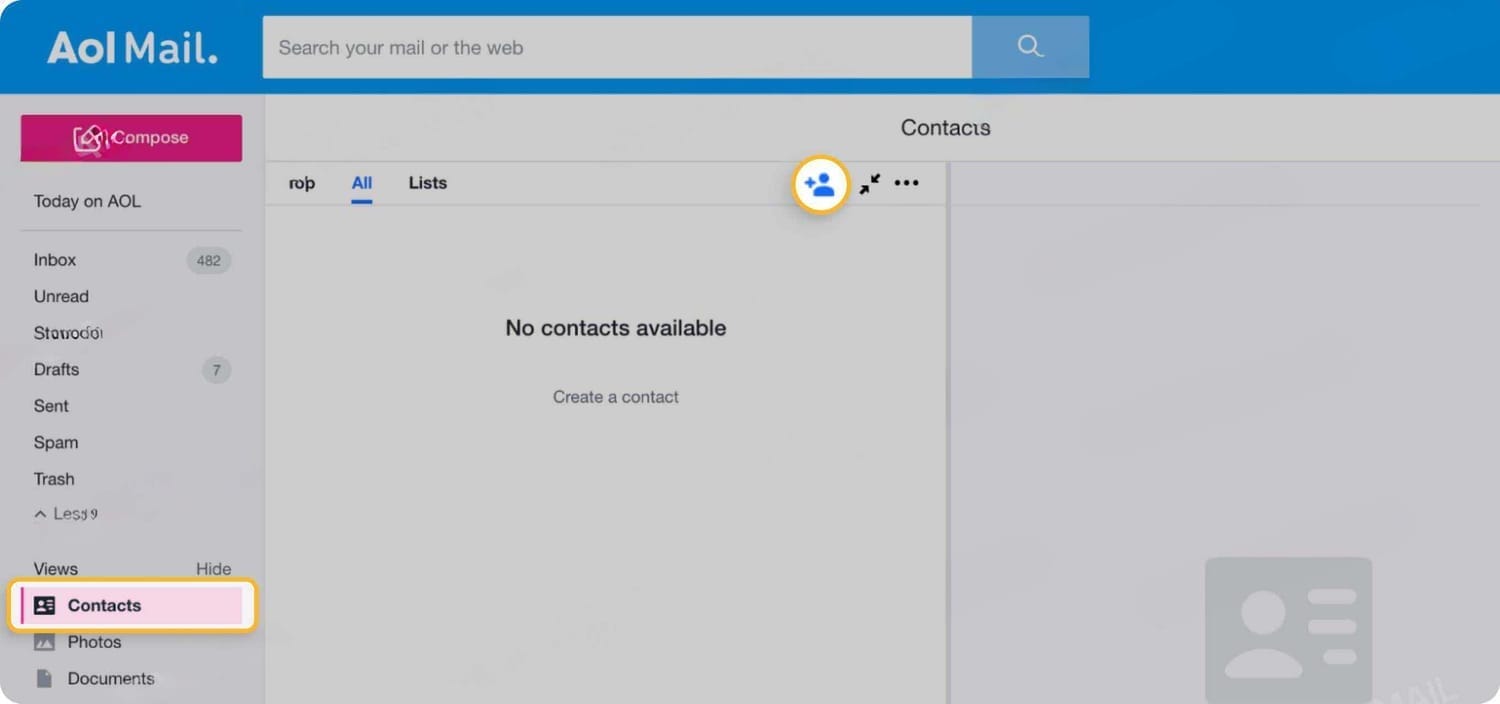
Open Contacts from the left navigation pane.
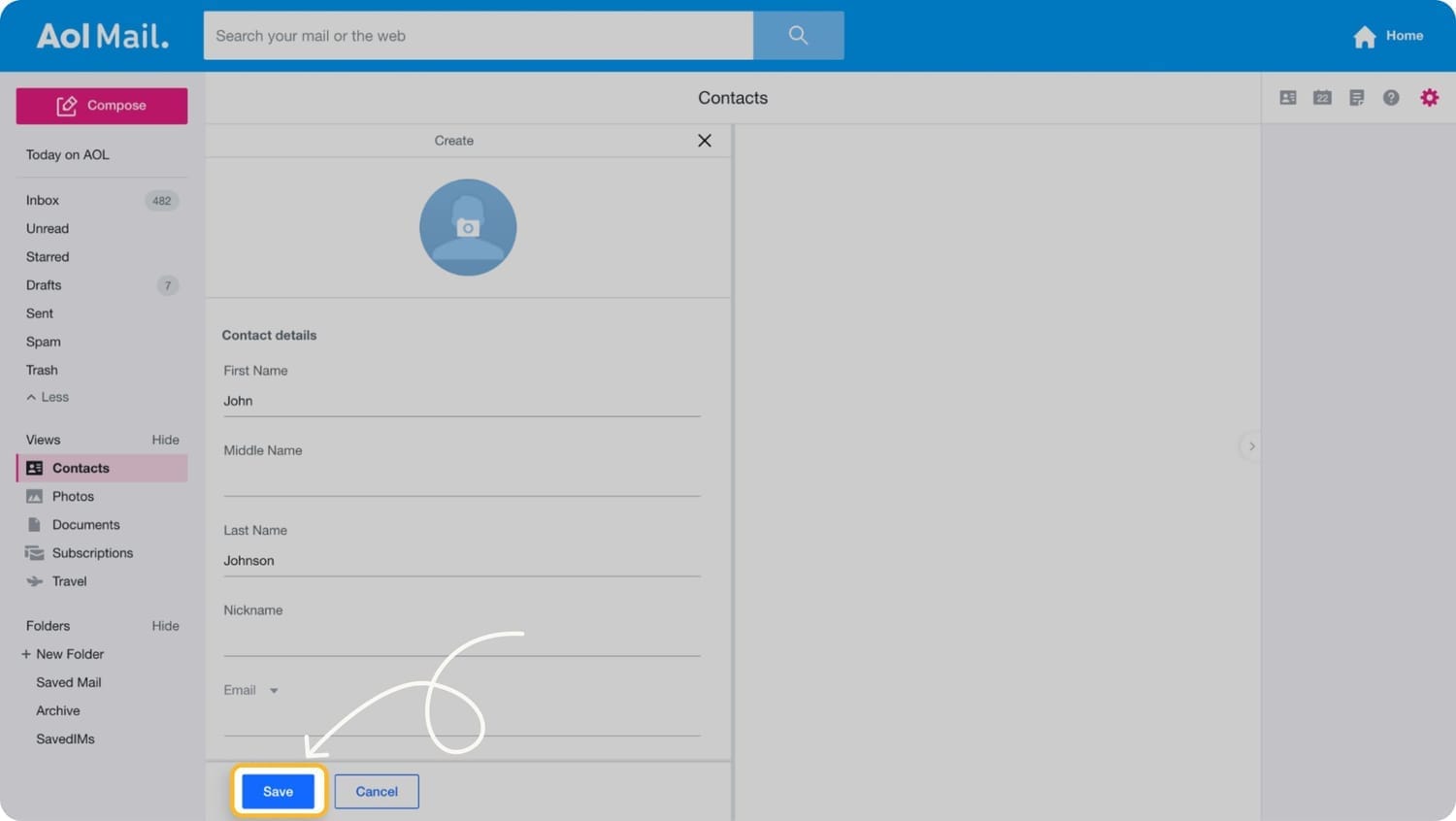
Click the New Contact icon and enter the required information.
Click the Save button at the bottom.
By whitelisting email in AOL, you can ensure that important messages from trusted senders will always reach your inbox without being marked as spam.
A whitelisted email address is considered trustworthy, ensuring messages from it consistently reach the inbox. Email whitelisting helps ensure that important messages from known senders won’t end up in the spam folder.
SHARE


Subscribe now.
Sign up for our newsletter to get the most interesting marketing training of the day straight to your inbox before everyone else
CATEGORIES
ABOUT
If you’ve not heard of me before (and why should you), I have a home in the beautiful countryside of Cambridgeshire in the UK and scuttle around the world meeting clients and generally chasing the sun and having fun.
I love travel, exploring new horizons and photographing gorgeous scenery as well as enjoying music and the arts, all of which are possible because I’ve figured out how to work smart and not hard.
Created with ©systeme.io• Privacy policy • Terms of service